Three ways to find your serial number:
1
on your product
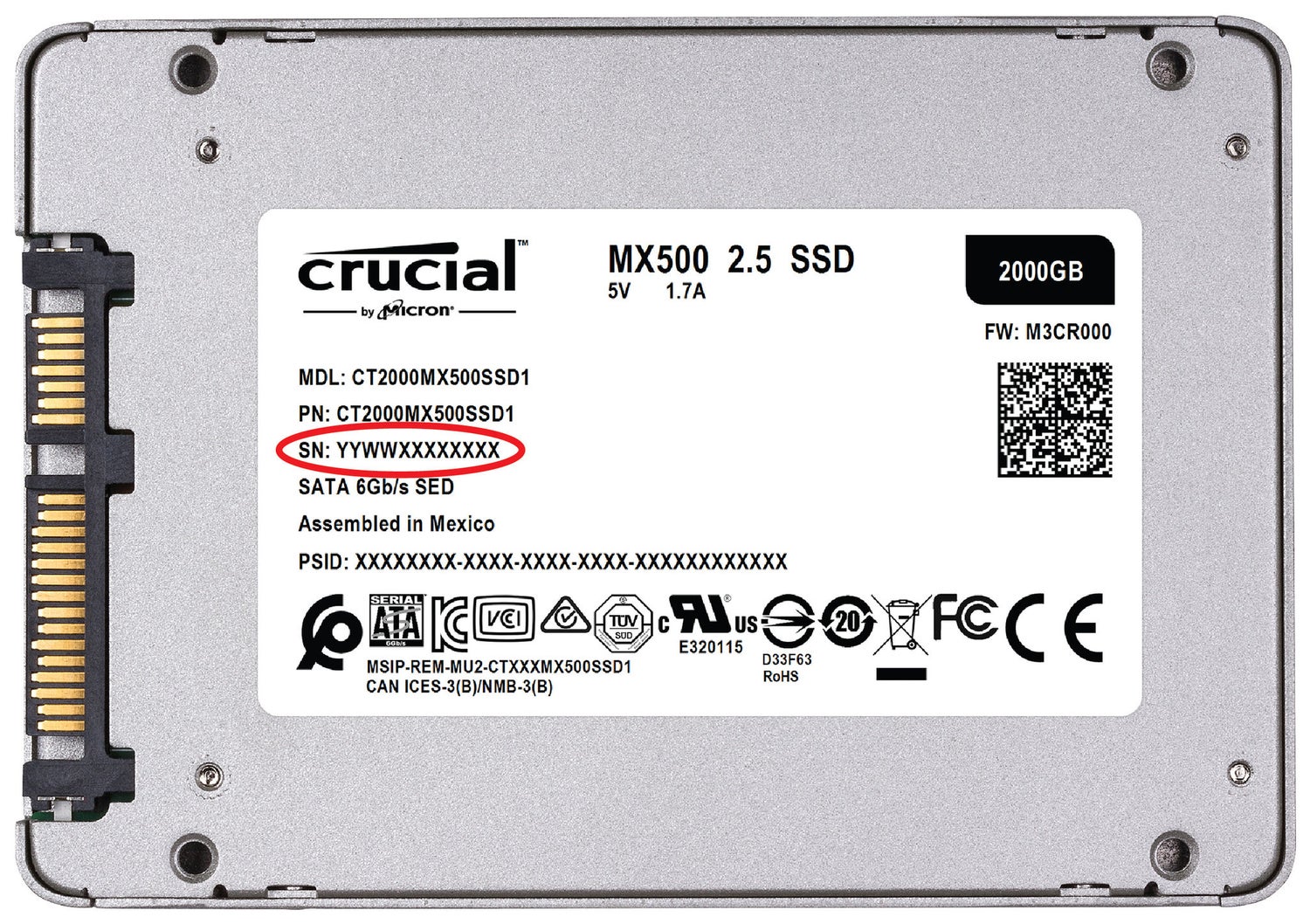
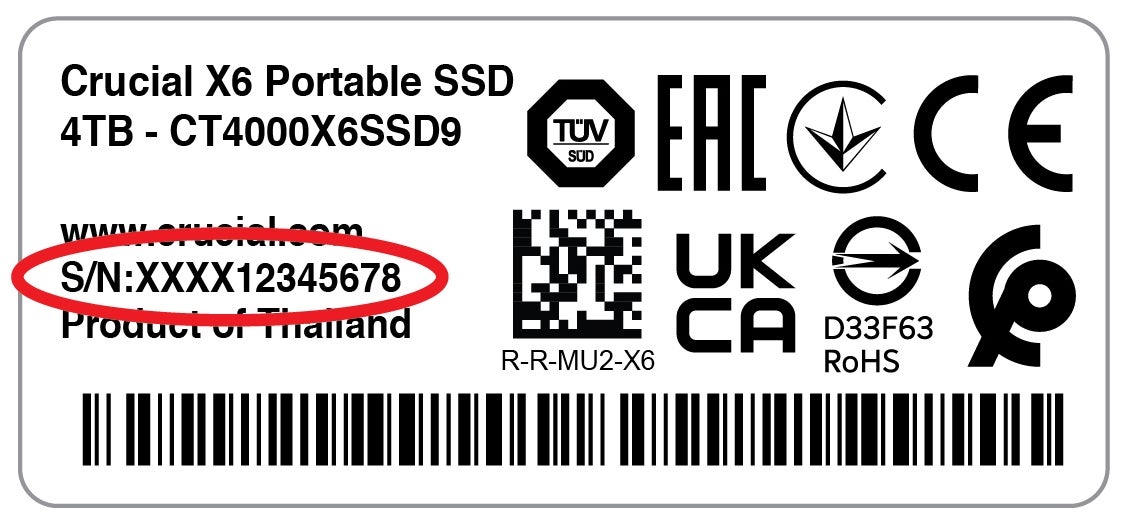
The serial number is on the back, denoted as "SN".
Crucial MX500
Crucial BX500
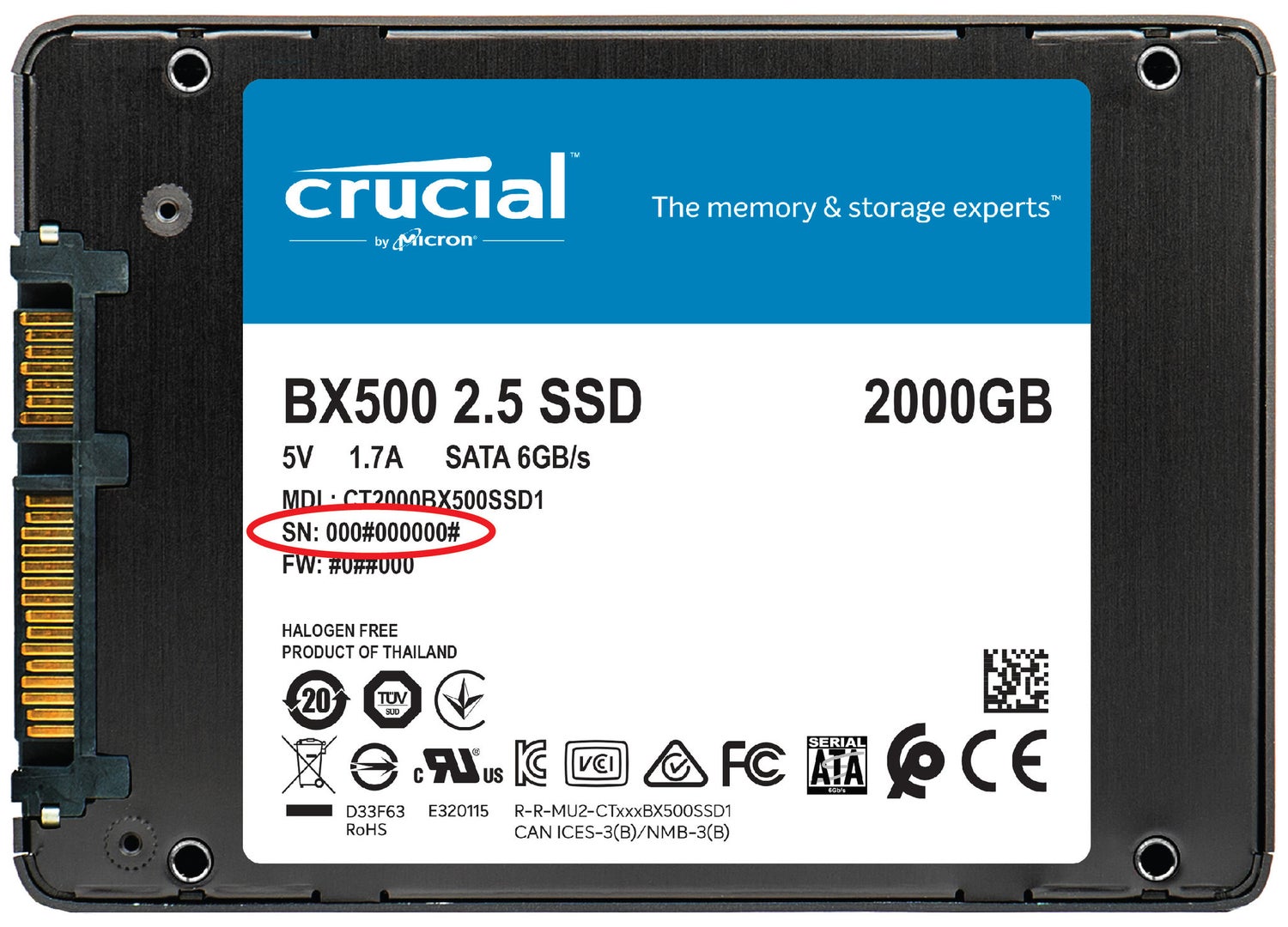
The serial number is on the back, denoted as "SN"
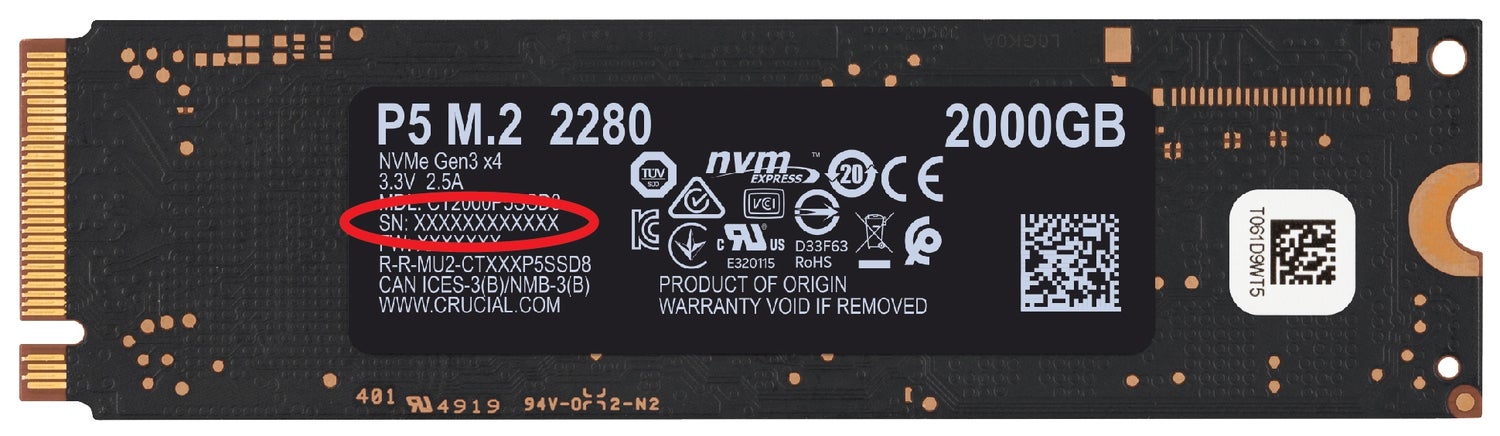
Crucial P5
Crucial P2
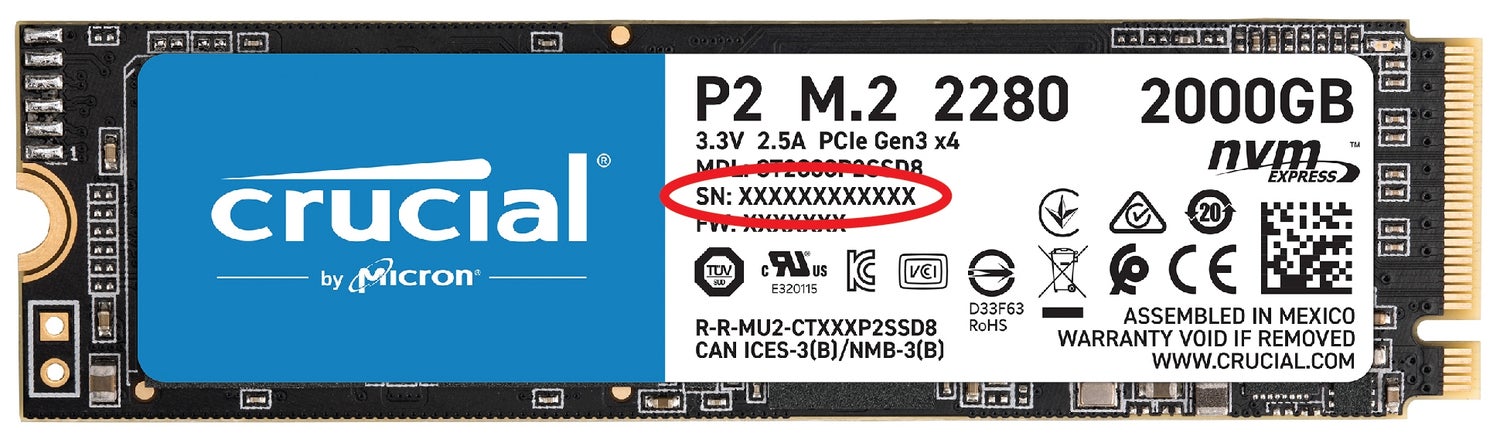
The serial number is on the back, denoted as "SN"
Crucial X8
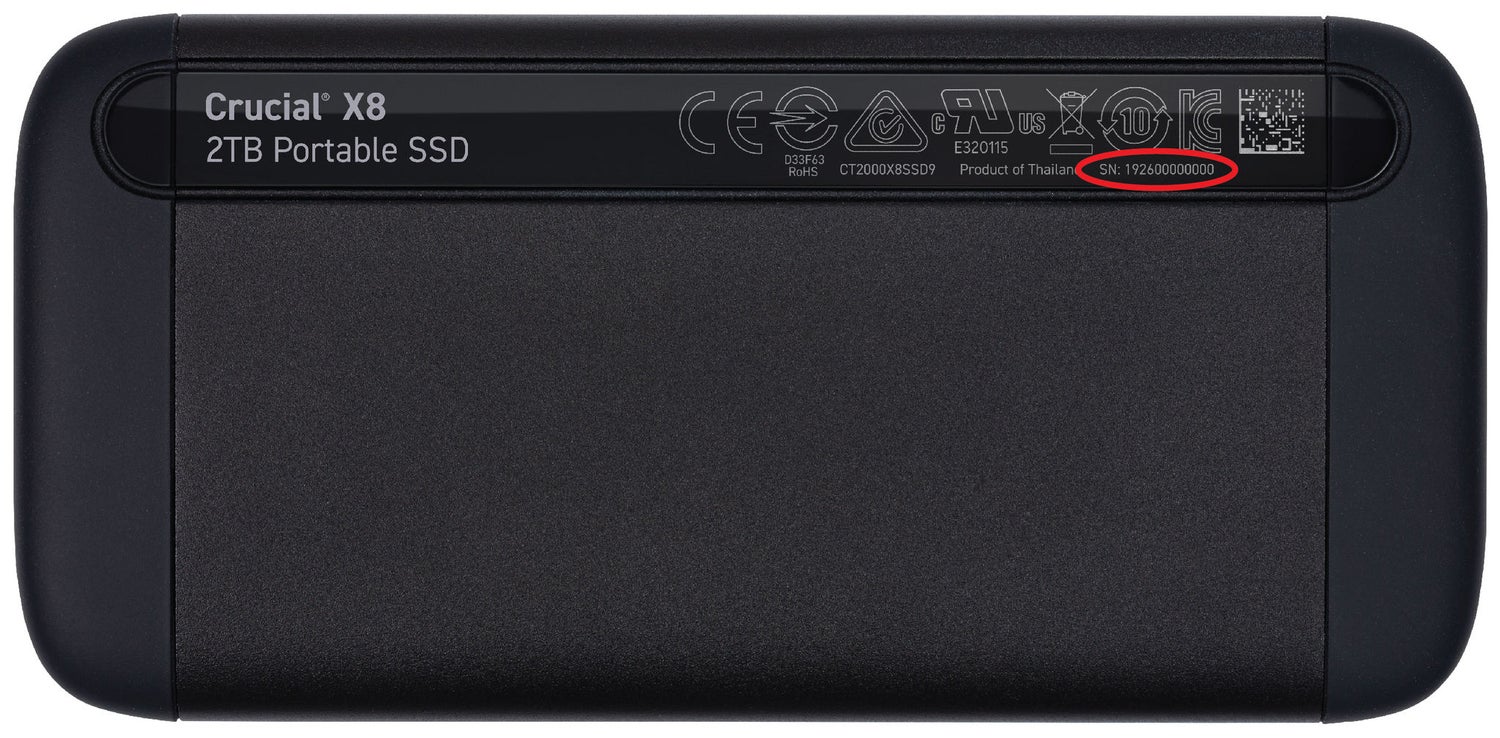
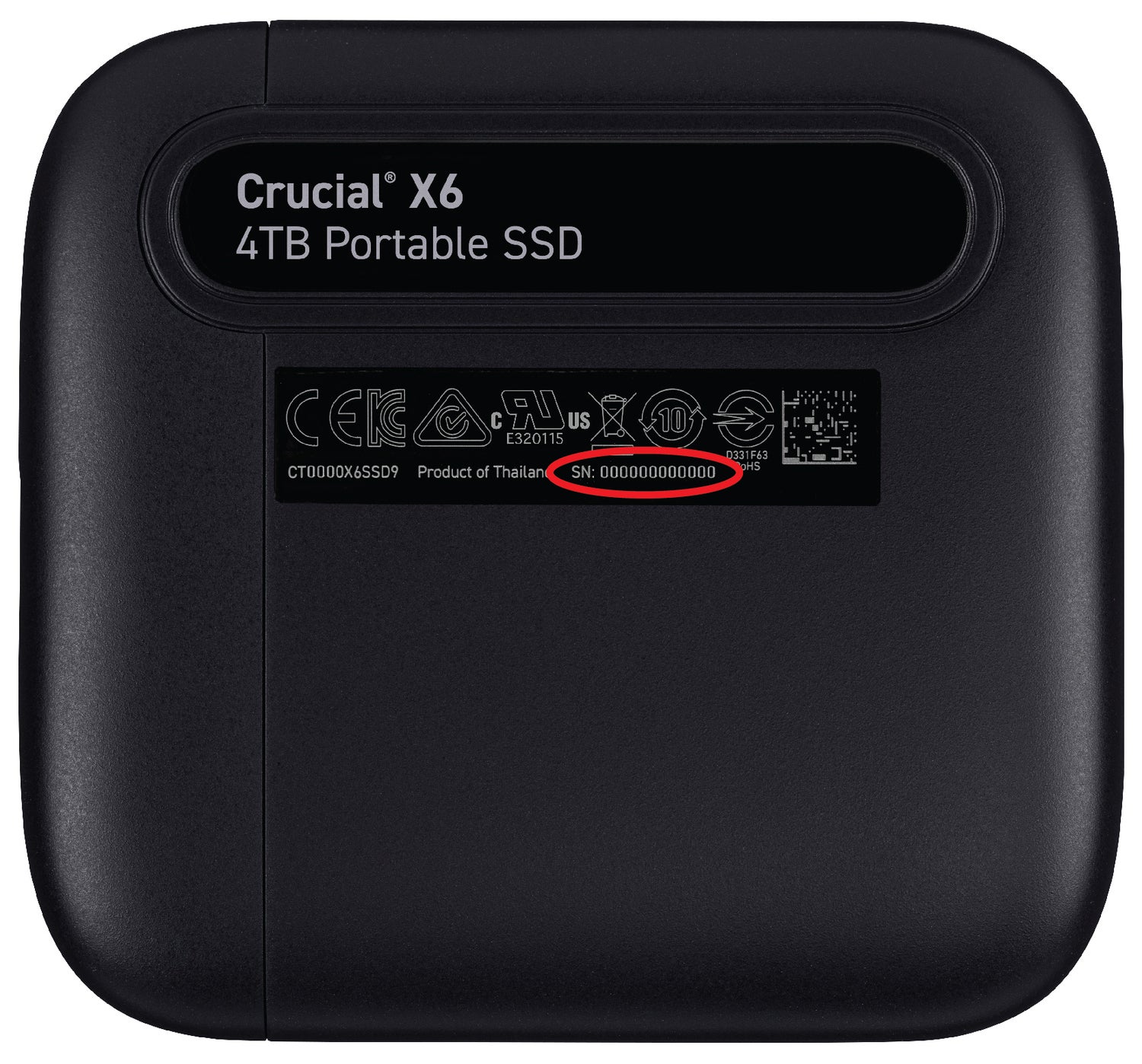
Crucial X6
2
on the packaging
The serial number is on the bottom of the package.
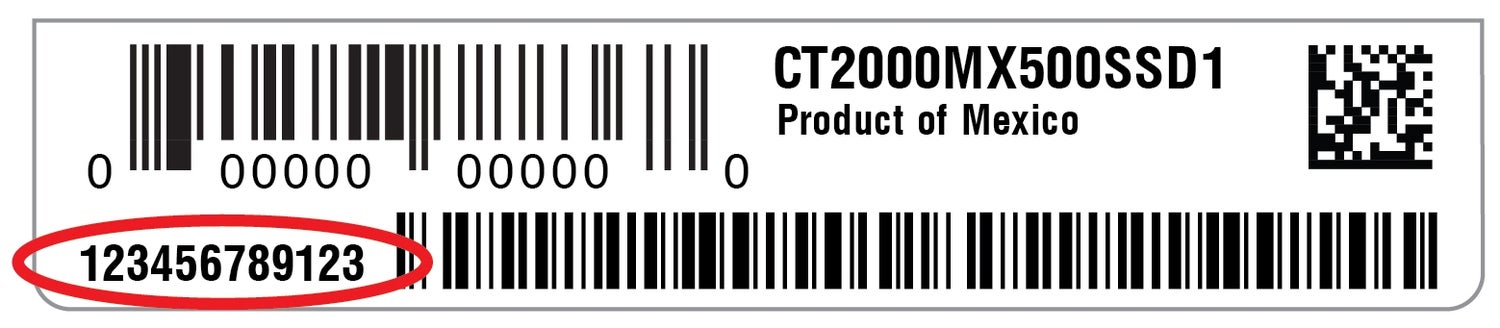
The serial number is on the bottom of the package, denoted as "SN".
3
via software
To find your SSD serial number without opening your case:
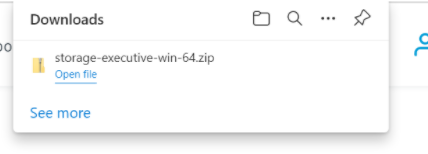
1. Download Crucial storage executive
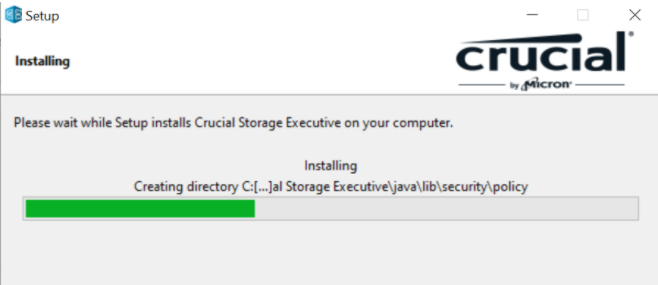
2. Use the wizard to install and open it on your computer.
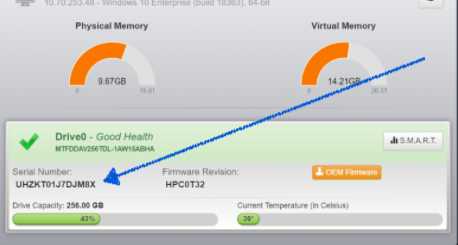
2. The serial number will be listed under the green checkmark on the bottom of the Storage Executive window.
To find your SSD serial number without opening your case:
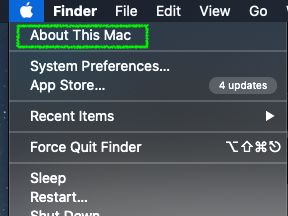
1. Click the Apple in the menu bar and select About this Mac.
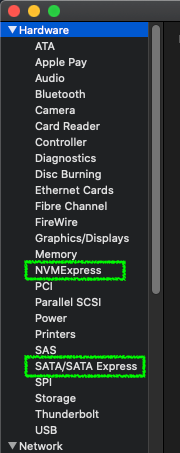
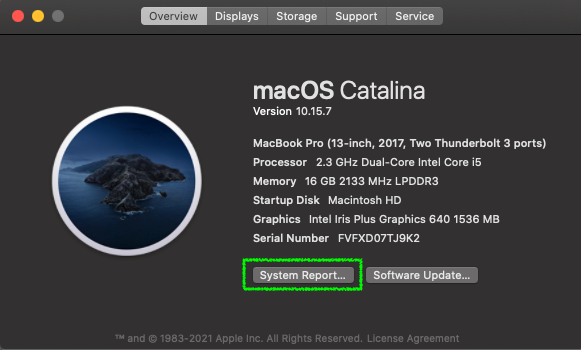
2. Under the Overview tab, click on the System Report button.
3. From the Hardware dropdown menu in the left column, select either NVMExpress or SATA/SATAExpress, matching your SSD type